
Video Speed Controller
Control playback speed of any HTML5 video. Speed up or slow down on any website. Keyboard shortcuts and per-site memory.
- Works on
- Edge
- Version
- 3.0.2
Plenty of video players stop at 2x, and training portals and conference recordings often have no speed menu at all. This changes the playback rate on the video element itself, so the site's own controls stop deciding how fast you can watch.
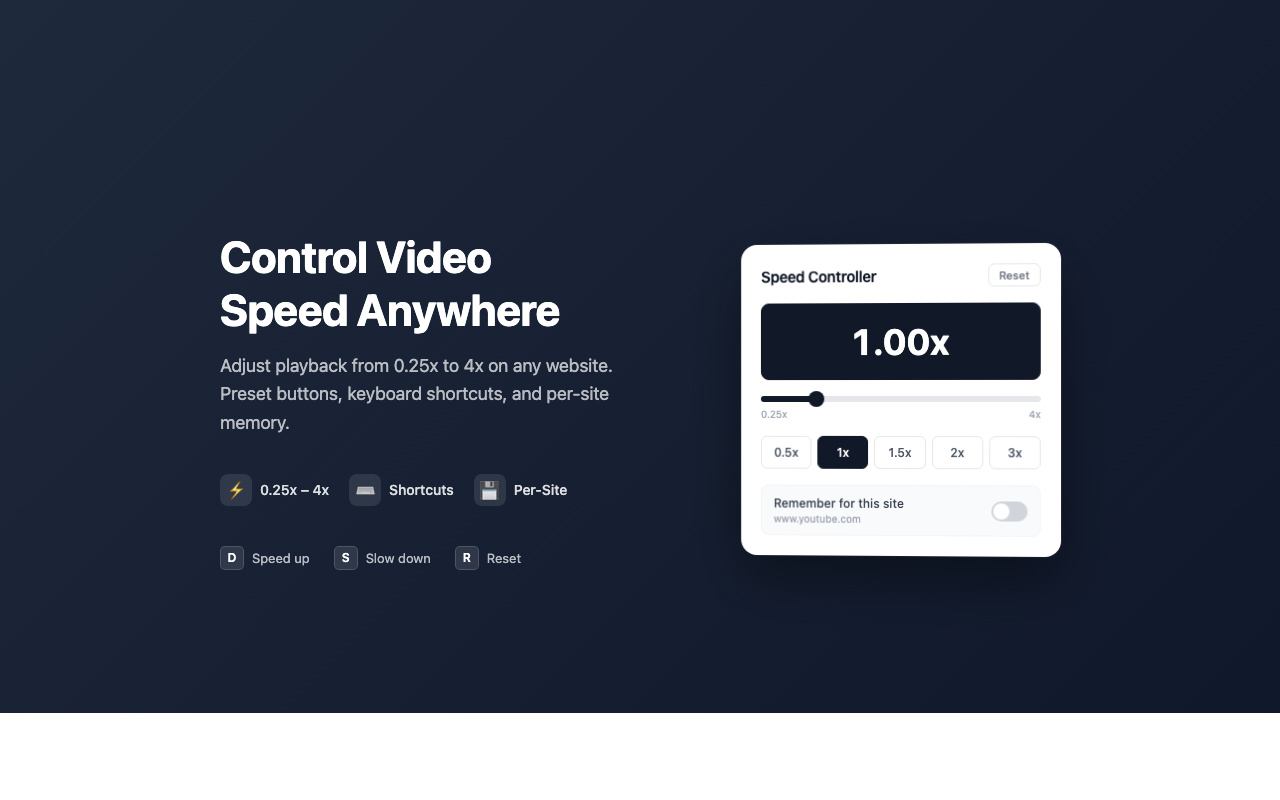
Video Speed Controller gives you precise control over HTML5 video playback speed on any website. Adjust speed from 0.25x to 4x, use preset buttons for quick changes, control with keyboard shortcuts, and the extension remembers your preferred speed for each site. Works on YouTube, Netflix, Vimeo, and any site with HTML5 video.
Screenshots
What it does
Speed Range 0.25x
4x — Fine-tune playback speed from 0.25x (slow motion) to 4x (fast forward) with precise control.
Preset Speed Buttons
Quick-access buttons for commonly used speeds (0.5x, 1x, 1.5x, 2x) for instant switching.
Keyboard Shortcuts
Press D to speed up, S to slow down, and R to reset to normal speed. Control playback without moving your mouse.
Per-Site Speed Memory
The extension remembers your preferred playback speed for each website and automatically applies it on your next visit.
Works on All HTML5 Videos
Compatible with YouTube, Netflix, Vimeo, Coursera, Udemy, and any website using HTML5 video elements.
On-Screen Overlay Indicator
A subtle overlay shows the current playback speed whenever you change it, so you always know how fast the video is playing.
When you'd reach for it
Course players with no speed menu
Internal training portals and embedded lecture players usually ship whatever controls the vendor felt like building. Click the toolbar icon and drag the slider from 0.25x to 4x in quarter steps, or hit one of the presets: 0.5x, 1x, 1.5x, 2x, 3x. A small overlay in the top-left corner shows the new rate for a second, then fades.
Keyboard-only, hands on the desk
Press D to go a quarter step faster, S to go a quarter step slower, and R to drop back to 1x. You never have to open the popup. The keys are ignored while you are typing in an input, a textarea or any editable field, so writing a comment does not send the video flying.
A site you always watch at the same speed
Turn on "Remember for this site" in the popup and the speed is saved against that hostname. Next time you open a video there, it starts at your speed with no overlay and no clicking. It is off until you switch it on, and switching it off deletes the saved value for that site.
How to use it
- 01Navigate to any webpage with a video.
- 02Click the Video Speed Controller icon to open the speed control panel.
- 03Use the slider or preset buttons to set your desired speed.
- 04The extension automatically remembers your speed for each site.
Permissions & privacy
Single purpose
Video Speed Controller has a single purpose: to allow users to adjust HTML5 video playback speed on any webpage using a slider, preset buttons, or keyboard shortcuts, and to remember speed preferences per site.
Video Speed Controller runs entirely in your browser. Speed settings are stored locally using chrome.storage. No video content, viewing history, or personal data is collected, transmitted, or stored on any external server. The extension works fully offline after installation. It runs only the code shipped inside the package — no remote code is fetched.
Questions people ask
How do I speed up a video on a site with no speed option?
Open the video page, click the extension icon, and move the slider or tap a preset. The speed is applied to every HTML5 video element on the page, independent of the player's own UI. If the site loads another video into the same page afterwards, that one picks up the current speed too.
What are the keyboard shortcuts, and can I remap them?
D speeds up by 0.25x, S slows down by 0.25x, and R resets to 1x. They are fixed, there is no remapping screen in the popup. They only fire when focus is outside text fields, and the range is clamped between 0.25x and 4x either way.
Why doesn't it work on a video embedded in a blog post?
Embedded players usually live inside an iframe, and the content script runs only in the top-level page, so it never reaches that video element. Opening the video on the source site directly is the workaround. Videos that are part of the page itself, rather than an iframe, are handled normally.
Does it remember my speed between visits?
Only if you turn "Remember for this site" on, and it is per hostname rather than global. With it off, the speed lasts as long as the page does and every new page starts at 1x. With it on, the saved rate is applied silently when the page loads.
What permissions does it declare, and what is stored?
The manifest declares exactly one permission: storage. The content script runs on all pages, and all it does there is read and set the playbackRate of video elements and draw a small speed overlay; it does not read page text. Saved speeds are written to chrome.storage.sync as hostname-keyed values, which means Chrome may sync those entries to your signed-in profile on other machines. Leaving the per-site toggle off means nothing about a site is stored at all.
Related extensions
 Eye Rest Reminder78 users
Reminds you to rest your eyes and prevent digital eye strain with gentle break reminders.
 Quick Memo74 users
A simple and elegant memo extension for your browser
 YouTube Detox47 users
Removes recommended videos from YouTube homepage and video pages.
 Focus Guard3 users
Block distracting sites with "Why are you here?" prompt. Reduce YouTube, X, Reddit, Instagram use — digital detox, 100% local.
 Notion Table & Database to CSV / Markdown2 users
Notion table to Markdown or CSV in one click. Adds a Copy button above any Notion table or database view. No login, no API.
 Air Quality Monitor
Real-time air quality monitor for Korean cities (PM2.5/PM10)