
Image Downloader
Download all images from any webpage. Preview, filter by size, and bulk download images with one click. Free image saver tool.
- Works on
- Edge
- Version
- 3.0.2
Saving twelve pictures from one page means twelve right-clicks, twelve Save As dialogs, and twelve chances to pick the wrong folder. This shows you every image the page loaded in a grid and downloads the ones you tick.
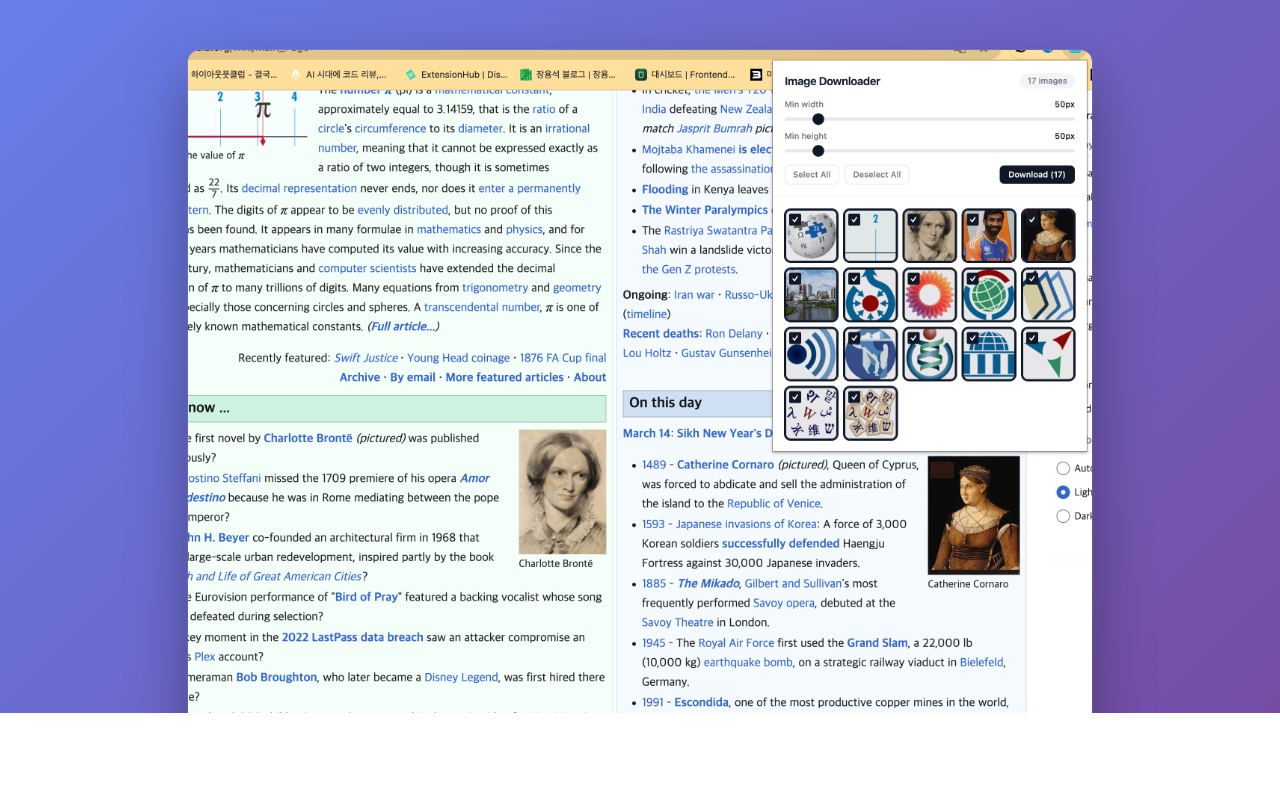
Image Downloader scans any webpage and lets you browse, filter, select, and bulk download all images in one click. View every image on the page in a thumbnail preview grid, filter by size, select the ones you want, and download them all at once.
Screenshots
What it does
Full Page Image Scan
Automatically detects and lists all images on the current webpage, including background images and dynamically loaded content.
Thumbnail Preview Grid
Browse all detected images in a clean, visual grid layout before downloading.
Size Filter
Filter images by minimum width and height to quickly find the images you need and skip tiny icons or spacers.
Select / Deselect All
Quickly select or deselect all images, or pick individual images from the grid.
Bulk Download
Download all selected images at once with a single click. No need to right-click and save each image individually.
Direct Download
Images are downloaded directly from their source URLs to your default download folder.
When you'd reach for it
Collecting reference images from a gallery
Scroll the gallery to the bottom so everything has loaded, then open the popup. The grid shows each image with its pixel size on hover, so you can tell a full-resolution shot from a thumbnail before saving. Raise the minimum width and the avatars, logos and UI sprites drop out of the list.
Grabbing product photos from a listing
Listing pages mix a handful of large product shots with dozens of badges and icons. Set the minimum width and height sliders to something like 400px and only the real photos remain. Tick the ones you need and the download count on the button tells you exactly how many files are coming.
Getting images that right-click won't give you
Hero banners and section backgrounds are often CSS background images, which don't offer a Save image as entry in the context menu. The scan reads computed background-image URLs as well as img tags and srcset entries, so those show up in the grid like any other picture.
How to use it
- 01Navigate to any webpage with images you want to download.
- 02Click the Image Downloader icon in the Chrome toolbar.
- 03Browse the thumbnail grid of all detected images.
- 04Use the size filter to narrow down results if needed.
- 05Select the images you want (or use "Select All").
- 06Click "Download" to save all selected images.
Permissions & privacy
Single purpose
Image Downloader has a single purpose: to scan the current webpage for all images, display them in a filterable thumbnail grid, and allow the user to select and bulk download images directly to their device.
Image Downloader processes everything locally in your browser. Images are downloaded directly from their original source URLs — no data passes through any intermediary server. No browsing history, image URLs, or personal data is collected, stored, or transmitted. It runs only the code shipped inside the package — no remote code is fetched.
Questions people ask
How do I download all images from a web page in Chrome?
Open the page, click the extension icon, and the popup lists every image it finds on that page as a thumbnail grid. Everything above the size threshold is selected by default, so you can hit Download straight away, or use Select All and Deselect All and click individual thumbnails to adjust. Each file is saved without a Save As prompt.
Why are some images missing from the list?
The scan reads the page as it currently exists in the browser, so images that haven't loaded yet aren't there. On infinite-scroll pages, scroll down first and then reopen the popup. Two more cases: images embedded directly in the HTML as data: URLs are skipped, and URLs taken from a srcset are reported with no dimensions, so the default 50px minimum hides them — drag both sliders to 0 to see everything.
Where do the files go, and what are they named?
They go to your browser's normal download folder, with no dialog per file. The filename is taken from the last part of the image URL, so a tidy URL gives a tidy name and a hashed CDN URL gives a hashed name. Downloads are issued one after another with a short pause between them rather than all at once.
What permissions does it use, and what is each one for?
The manifest declares activeTab, downloads, storage and tabs, and no host permissions. activeTab is what lets it scan the current page for image URLs and their pixel sizes, and it only applies after you click the toolbar icon. downloads is how each selected file is written to your download folder through the chrome.downloads API. storage remembers your two slider values between sessions. tabs supplies the active tab's URL and title, used for naming files and for telling which tab a download was started from.
Can I skip tiny icons and only keep large images?
Yes, that's what the minimum width and minimum height sliders do. Anything smaller than the values you set disappears from the grid and won't be downloaded. The settings are saved locally, so the next page you scan starts with the same filter instead of resetting to the 50px default.
Related extensions
 SEO Toolkit5K+ users
All-in-one SEO analysis: on-page score, SERP preview, keyword density, broken links, heading structure, and meta tag viewer.
 GitHub 한국어 (GitHub Korean)3K+ users
Turns GitHub's menus, buttons and settings labels into Korean as the page loads. Dev terms stay in the form you actually say, plus release and status alerts.
 KoreaDropdown800+ users
A Chrome extension that automatically selects 'Korea' in dropdown menus on websites.
 Eye Rest Reminder78 users
Reminds you to rest your eyes and prevent digital eye strain with gentle break reminders.
 Quick Memo74 users
A simple and elegant memo extension for your browser
 Sword Growth55 users
A sword enhancement game on your new tab page.