
Auto Scroll - Hands Free Page Scroller
Automatically scroll any web page at adjustable speed. Hands-free scrolling for reading, browsing, and presentations.
- Works on
- Edge
- Version
- 3.0.2
Reading a long page one flick of the trackpad at a time gets tiring, and it is worse when you are eating or sitting back from the screen. Press play and the page moves on its own at the speed you set, down or up, until it runs out of page.
Auto Scroll automatically scrolls any web page at the speed you choose. Just click play — no setup, no hassle.
Perfect for hands-free reading, long articles, social media feeds, and presentations.
Screenshots
What it does
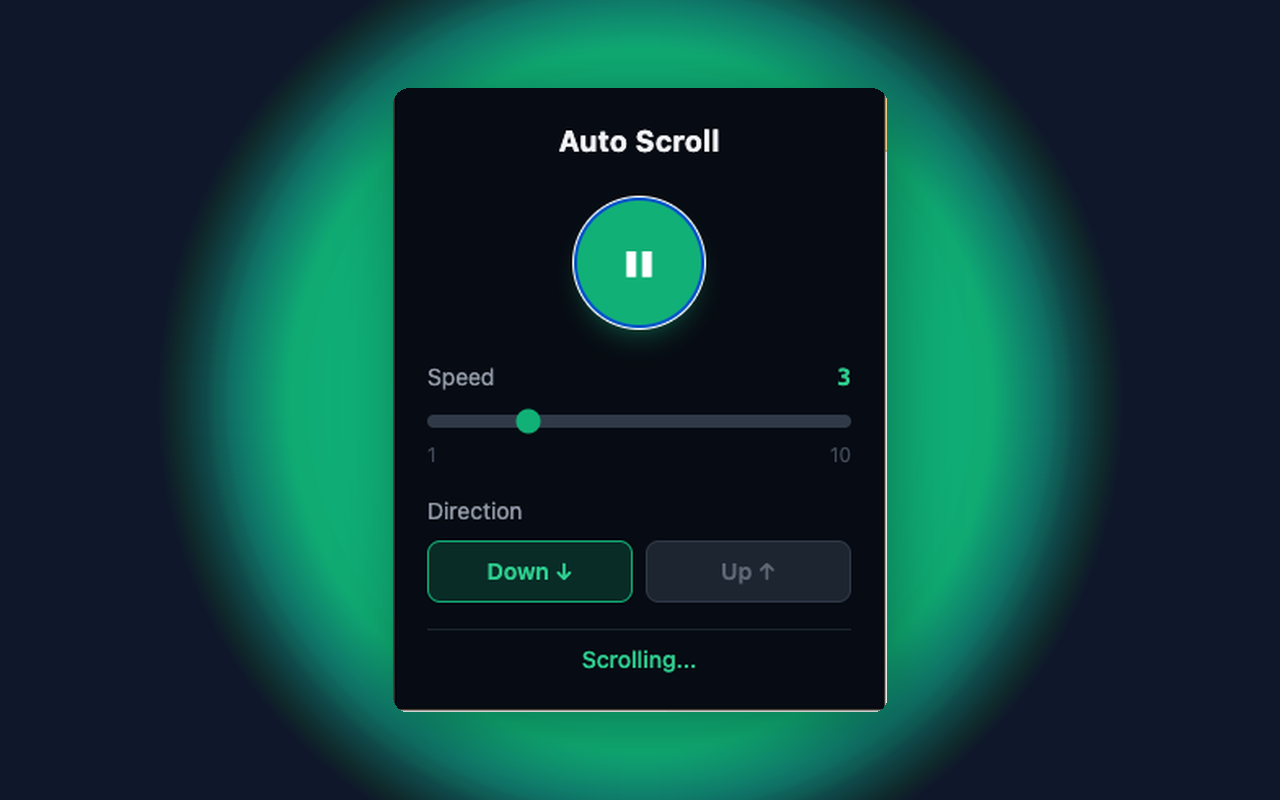
Adjustable scroll speed (1–10)
Play/Pause toggle with one click
Scroll direction
choose Down or Up
Auto-stop when reaching the end of the page
Works on every website (http and https)
Clean, minimal dark UI
When you'd reach for it
Reading a long article without touching anything
Set the slider to 1 or 2, press the round play button, and close the popup — the page keeps moving on its own. Your hands are free for a sandwich or a keyboard. When the article ends, the scrolling stops by itself.
Skimming a long feed or a wall of search results
Push the speed up to 7 or 8 to get through a long list quickly, then drag the slider back down the moment something catches your eye. Changes take effect while it is running, so you never have to stop and restart. Each step on the slider is one more pixel per tick, and ticks run about sixty times a second.
Putting a page on a second screen
Long changelogs, dashboards and documentation pages are easier to leave running than to babysit. Start it scrolling down for the room to read, and press the Up button to send it back toward the top when you reach the bottom. The status line under the controls tells you whether it is currently scrolling or stopped.
How to use it
- 01Click the Auto Scroll icon in your toolbar
- 02Set your preferred speed and direction
- 03Hit the play button — done
Permissions & privacy
Single purpose
Auto Scroll automatically scrolls web pages at a user-defined speed and direction. Users control playback via a popup with play/pause, speed slider, and direction toggle. Scrolling stops automatically at the end of the page.
All settings stored locally in chrome.storage No external servers, no API calls No data collection, no analytics, no accounts Permissions used: storage (preferences), activeTab + scripting (to scroll the page) Simple. Hands-free. Fast. It runs only the code shipped inside the package — no remote code is fetched.
Questions people ask
How do I make a web page scroll automatically in Chrome?
Click the toolbar icon, set the speed slider and pick Down or Up, then press the play button in the middle of the popup. The page you are viewing starts moving straight away. Press the same button again to pause.
Can I change the speed while the page is scrolling?
Yes. Moving the slider or switching direction applies immediately, without pausing first. Speed 1 creeps along for reading, and speed 10 is fast enough to cover a long page in a few seconds. The number next to the slider always shows what is currently set.
Does it stop when it reaches the bottom?
It does. On every tick the extension checks whether the page actually moved, and stops as soon as the position stops changing — which is what happens at the end of a page. You can also stop it yourself with the pause button, and the popup shows "Stopped" once it has.
Why does nothing happen on some pages?
Scrolling is applied to the page window, so a site that puts its content in an inner scrolling panel will not move. Browser pages such as chrome:// URLs and the extension store are off limits to every extension, so it cannot work there either. Tabs that were already open when you installed it need one reload before the controls reach them.
What permissions does it declare?
The manifest declares activeTab and storage, and nothing else — no host permissions. A small content script runs on http and https pages so it can scroll them; all it does is wait for a start or stop message from the popup and call the browser's own scroll function. It reads no page text.
Related extensions
 Eye Rest Reminder78 users
Reminds you to rest your eyes and prevent digital eye strain with gentle break reminders.
 Quick Memo74 users
A simple and elegant memo extension for your browser
 YouTube Detox47 users
Removes recommended videos from YouTube homepage and video pages.
 Focus Guard3 users
Block distracting sites with "Why are you here?" prompt. Reduce YouTube, X, Reddit, Instagram use — digital detox, 100% local.
 Notion Table & Database to CSV / Markdown2 users
Notion table to Markdown or CSV in one click. Adds a Copy button above any Notion table or database view. No login, no API.
 Air Quality Monitor
Real-time air quality monitor for Korean cities (PM2.5/PM10)