
Reading Time
Estimated read time for any article, blog post, or news story. Instant read time badge with word count — no setup needed.
- Works on
- Edge
- Version
- 3.0.2
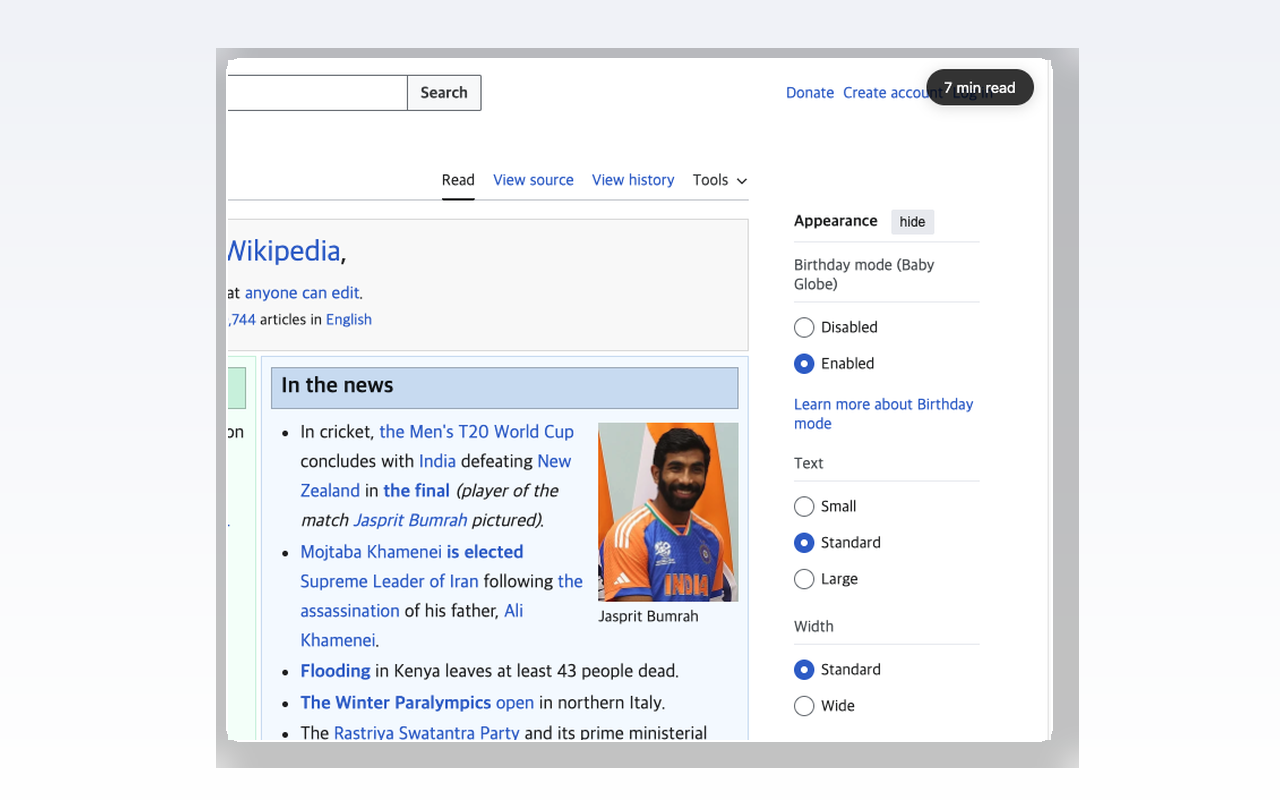
You open a long post and have no idea whether it is a four-minute read or a thirty-minute one. A small badge in the top corner answers that before you start, counting the words actually on the page against a reading speed you choose.
Reading Time — see the estimated reading time for any article instantly. A small read time badge appears on the page the moment you open a blog post, news story, or long-form article. No clicks, no popups, 100% local — nothing ever leaves your browser.
Know exactly how long it takes to read an article before you start. Reading Time automatically detects article-style pages — blog posts, news articles, documentation, newsletters, forum discussions, research papers — and shows an estimated read time based on word count and your preferred reading speed.
Screenshots
What it does
Instant reading time estimate on every article, blog post, and long-form page
Based on an average reading speed of 200 words per minute (WPM), adjustable from 100 to 400 WPM
Word count, character count, and paragraph count
click the extension icon any time
Clean, minimal badge that fades out automatically so it never gets in the way
Zero setup
works the moment you install, no account, no login
Smart article detection keeps it out of your way on Gmail, YouTube, search results, dashboards, and other non-article pages
Private by design
all processing runs locally, no tracking, no analytics, no data sent to any server
Readers deciding whether to read now or save for later
Students and researchers triaging long papers, reports, and essays
Professionals scanning long blog posts, newsletters, and industry reports
Writers and content creators checking how long their drafts take to read
Anyone who wonders "how long will this take to read?" before diving in
When you'd reach for it
Read now or save for later
You are several tabs deep and short on time. Open the article and the estimate appears on its own in the top-right corner, so you can start it now or send it to a read-later list. The badge slides away after about five seconds without you touching anything.
Triaging papers and long reports
Researchers and students usually open ten sources before reading one. Click the toolbar icon on each tab to see word count, character count and paragraph count next to the minute estimate. That is often enough to decide which document deserves a full read and which one you skim.
Matching the estimate to your own pace
The default is 200 words per minute, which is faster than some people read and slower than others. Drag the slider in the popup anywhere between 100 and 400 WPM and the estimate recalculates for the page you are on. Reading in a second language, drop it lower.
Permissions & privacy
Single purpose
Reading Time has a single purpose: estimating how long it takes to read the content on the current web page. It counts the words on the page, calculates an estimated reading time based on an average reading speed of 200 words per minute, and displays the result as a small non-intrusive badge on the page. No data leaves the browser.
It runs only the code shipped inside the package — no remote code is fetched.
Questions people ask
How do I see the estimated reading time of an article in Chrome?
Open any article page and the badge appears in the top-right corner by itself, reading something like "12 min read". There is nothing to click and nothing to set up first. Click the toolbar icon to see the same estimate along with word, character and paragraph counts for that page.
How is the read time calculated?
It counts the words inside the page's main content and divides by your reading speed, rounding up to the next whole minute. The default speed is 200 words per minute, adjustable from 100 to 400 in the popup. It looks for the article, main, or post-content area first and strips out scripts, navigation, headers and footers before counting.
Why does no badge show up on some pages?
The badge only appears on pages that identify themselves as articles, through an og:type of article, article: meta tags, or Article-type JSON-LD markup. Inboxes, dashboards, search results and video pages generally carry none of that, so nothing is injected there. Opening the popup on such a page shows "Open an article to see reading time" instead of numbers.
What permissions does it declare?
Two, and no host permissions. Storage holds your badge toggle and your WPM value in chrome.storage.local, which is why the popup opens with the pace you last set. webNavigation lets the background script be told when a page has finished navigating, including in-page navigation on single-page sites where the URL changes without a reload — that signal is what prompts a fresh count for the document now on screen, so the badge does not keep showing the previous article's estimate.
Can I hide the badge and still check reading time?
Yes. Turn "Show badge" off in the popup and nothing is injected into the page anymore. The estimate and the three counts are still there whenever you click the toolbar icon. The change applies immediately to the tab you are looking at.
Related extensions
 Eye Rest Reminder78 users
Reminds you to rest your eyes and prevent digital eye strain with gentle break reminders.
 Quick Memo74 users
A simple and elegant memo extension for your browser
 YouTube Detox47 users
Removes recommended videos from YouTube homepage and video pages.
 Focus Guard3 users
Block distracting sites with "Why are you here?" prompt. Reduce YouTube, X, Reddit, Instagram use — digital detox, 100% local.
 Notion Table & Database to CSV / Markdown2 users
Notion table to Markdown or CSV in one click. Adds a Copy button above any Notion table or database view. No login, no API.
 Air Quality Monitor
Real-time air quality monitor for Korean cities (PM2.5/PM10)