
Color Picker
Pick any color from any webpage. Get HEX, RGB, and HSL values instantly.
- Version
- 3.0.2
This one is built but not on a store yet. The page is here so you can see what it does.
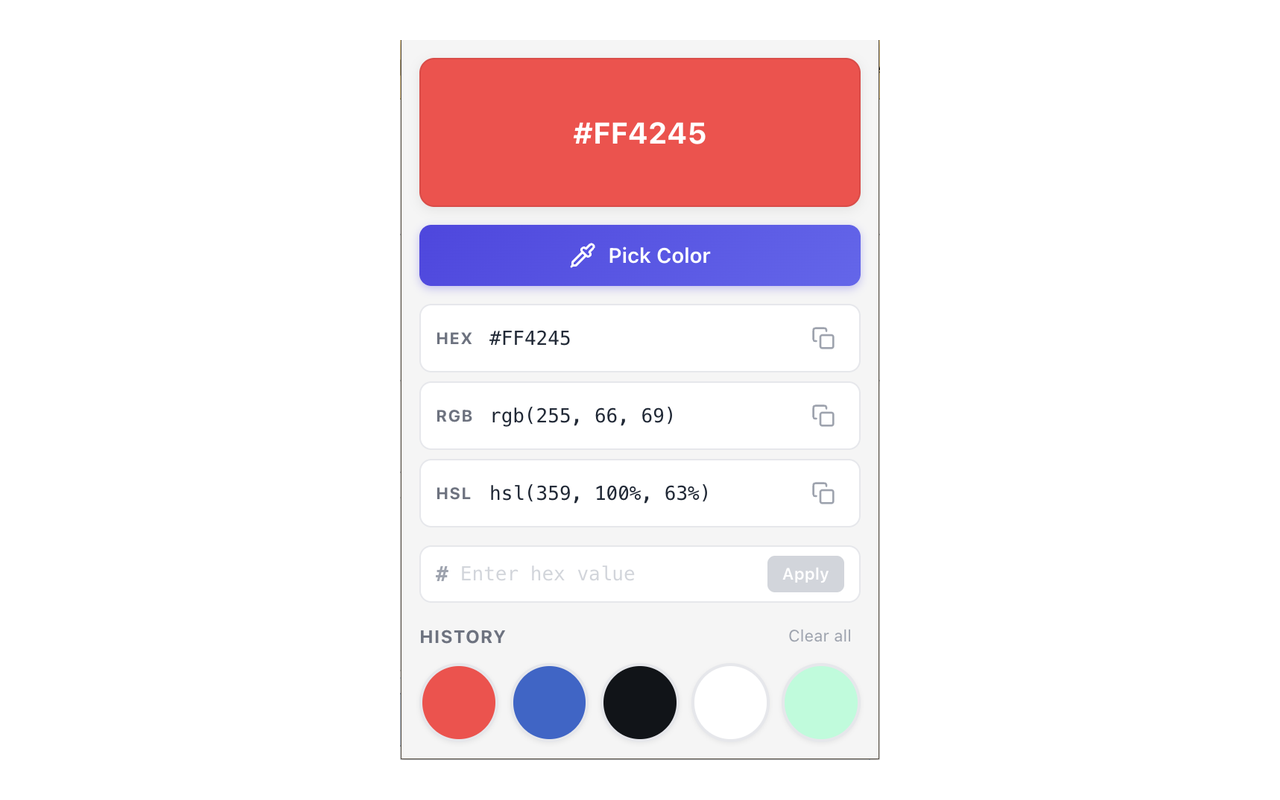
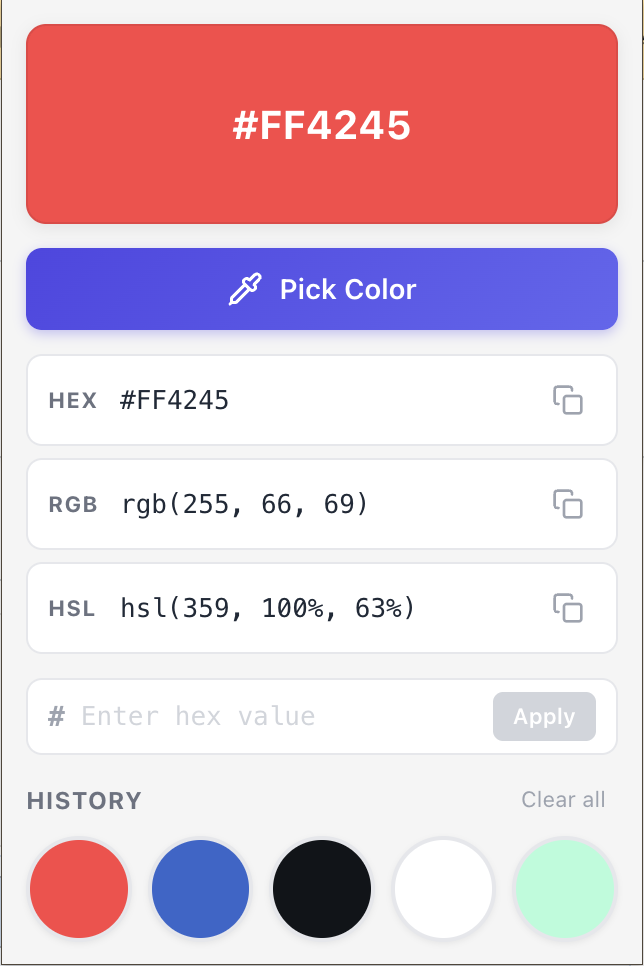
You spot a color you want and there's no clean way to read it. The inspector helps when the color came from CSS, and not at all when it's inside a photo, a chart image, or a video frame. This puts an eyedropper in the toolbar: press Pick Color, click the pixel, and the HEX, RGB and HSL values appear together, each with its own copy button. The twenty most recent colors stay in a grid you can click again later.
Screenshots
When you'd reach for it
Matching a color you can only see, not inspect
The eyedropper reads the rendered pixel, so it doesn't matter whether the color came from a stylesheet, a screenshot pasted into a doc, or a frame of a video. The picked value fills the preview swatch and the label text flips between dark and light so it stays readable against whatever you picked. Pressing Escape while the picker is open cancels quietly and records nothing.
Copying a value straight into code
HEX, RGB and HSL are shown at once, already formatted the way you'd paste them: #1F2937, rgb(31, 41, 55), hsl(215, 28%, 17%). Each row has its own copy button that swaps to a checkmark for a moment, and a small toast names the format that went to the clipboard so you don't have to guess which button you hit.
Rebuilding a palette you already have
Type or paste a hex value into the field at the bottom and press Enter to make it the current color; three-digit shorthand like #abc is expanded to six and anything invalid is rejected with a message instead of silently applied. Every color you pick or type joins the history grid, capped at twenty and deduplicated. Clicking a swatch restores it and copies the hex at the same time, and Clear all empties the grid.
Permissions & privacy
It runs only the code shipped inside the package — no remote code is fetched.
Questions people ask
How do I pick a color from a web page in Chrome?
Click the toolbar icon and press Pick Color — the pointer becomes an eyedropper and the pixel you click becomes the current color. The value is normalized to uppercase six-digit hex, then converted for the RGB and HSL rows below it. This uses the browser's built-in eyedropper, so if it can't start, the popup shows an error rather than a color.
Can I copy the color as RGB or HSL instead of HEX?
Yes. All three formats are on screen at once and each has its own copy button, so there's no format switch to hunt for. HSL is rounded to whole degrees and whole percents, and RGB uses the standard comma-separated CSS form. Clicking a swatch in the history copies the HEX value specifically.
Where is my color history stored?
In the extension's local storage on your machine, as a list of hex values with the time each was added. It holds twenty entries; picking a color that's already there moves it back to the front instead of creating a duplicate. Clear all wipes the list, and removing the extension takes its storage with it.
Can I enter a hex code by hand instead of picking one?
Yes — the input at the bottom takes three or six hex characters, with or without the leading #, and non-hex characters are filtered as you type. Press Enter or hit Apply and it becomes the current color, with RGB and HSL derived from it. An invalid value shows "Invalid hex color value" and nothing changes.
What permissions does it need, and does it read the pages I visit?
It reads nothing from your pages. The manifest declares exactly two permissions — storage for the color history and clipboardWrite for the copy buttons — with no host permissions and no content scripts, so it has no access to page content. The eyedropper runs from the popup through a browser API, and the history it keeps stays in local extension storage.
Related extensions
 GitHub 한국어 (GitHub Korean)3K+ users
Turns GitHub's menus, buttons and settings labels into Korean as the page loads. Dev terms stay in the form you actually say, plus release and status alerts.
 KoreaDropdown800+ users
A Chrome extension that automatically selects 'Korea' in dropdown menus on websites.
 Naver Blog & Cafe Image Downloader9 users
Save every image from Naver Blog, Cafe, and Post in one click. Full-resolution originals in one folder, no context menu needed.
 Happy Pet - Virtual Pet7 users
A cute virtual pet companion for your new tab page
 Review Signal for Coupang — Review Trust Analyzer2 users
Trust signals for Coupang reviews: sponsored ratio, date bursts, duplicate text, rating skew. Suspicion signals, not a verdict.
 Auto Refresh - Reload Tab on Timer
Automatically reload the current tab on a timer, from 30 seconds to any interval. No ads, no tracking, no site permissions.